Shopify Checkout Extensibility: 6 Essential Best Practices for a High-Converting Checkout
Unlock the full potential of your Shopify Plus checkout. Learn 6 essential best practices for using Checkout Extensibility, UI Extensions, and Shopify Functions to boost conversions and AOV.
The first checkout migration I cleaned up wasn't broken because the developer didn't understand extensions. It was broken because they rebuilt the entire order summary as a single UI extension, injected custom CSS to fake the native styling, and shipped it. Three weeks later Shopify pushed a checkout update, the spacing drifted, the custom font fell back to system default, and the merchant's "premium" checkout looked like a half-loaded page on mobile. Nothing crashed. It just looked wrong, quietly, and conversion dipped before anyone noticed.
That's the thing about checkout extensibility. The footguns aren't compile errors. They're decisions that pass review, deploy fine, and cost you money two updates later.
I've shipped enough UI extensions and Functions across Plus stores to have opinions about which of those decisions are the expensive ones. This post is about the practical stuff: what people get wrong, where the gotchas hide, and what I'd tell you before you write a line of code. If you want the full feature breakdown of what's new, what's GA, and where the platform is heading, I covered that separately in Shopify checkout extensibility in 2026. This one stays in the weeds.
Don't fake the branding. Use the Branding API.
This is the mistake I see most, so I'm putting it first.
Your checkout's colors, fonts, corner radius, and logo are configurable through the checkout Branding API, surfaced in the checkout editor and addressable via the Admin API's checkoutBrandingUpsert mutation. That's the supported path. It's the only path that survives a Shopify checkout update.
What people do instead: they reach for a UI extension, render a styled component, and inject CSS to match the merchant's brand. It works in the preview. It demos great. Then Shopify ships a layout change and your hardcoded padding fights the native layout, or your custom font never loads on a slow mobile connection and the fallback looks nothing like the design.
UI extensions intentionally give you a constrained component set (BlockStack, InlineStack, Banner, TextField, and so on) styled to inherit checkout branding. That constraint is the feature. When your extension's button automatically matches a branding change the merchant makes six months from now, that's the system working. Fighting it with CSS overrides is signing up for maintenance forever.
If a merchant asks for visual styling, my first answer is always: can the Branding API do this? Usually it can.
Pick UI extensions OR Functions deliberately — they're not interchangeable
People conflate these because both are "checkout extensibility," but they solve different problems and run in different places.
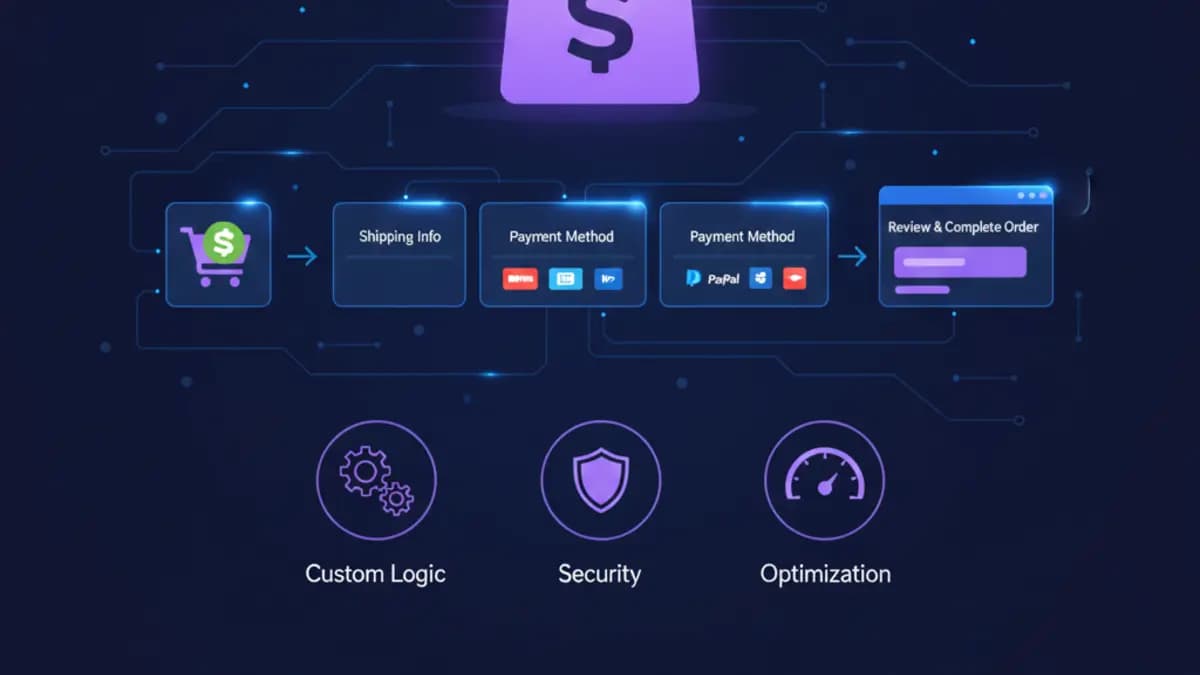
UI extensions render at fixed extension targets — purchase.checkout.block.render, purchase.checkout.delivery-address.render-before, and friends. They're for what the customer sees and interacts with: a gift-message field, a delivery-date picker, trust content, a B2B VAT input.
Functions are backend logic compiled to WebAssembly. They run server-side at specific points in the cart and checkout lifecycle — discounts, payment method customization, delivery customization, cart and checkout validation. No UI. The customer never sees the Function, only its effect.
The trap is trying to enforce business rules from the UI extension. I've seen a "minimum order value" rule implemented as a UI extension that disabled the pay button. It's trivially bypassable — anyone editing the cart through a different surface or with a slow render walks right past it. Validation that must hold belongs in a cart-and-checkout-validation Function, not in the UI. The UI extension is where you show the friendly message; the Function is what actually blocks the order.
Rule of thumb I use: if skipping it would let an order through that shouldn't go through, it's a Function. If it's about presentation or input collection, it's a UI extension. Most real features need both — the Function enforces, the extension explains.
Read the network access and capabilities rules before you design
This one bites people who came from checkout.liquid, where you could do whatever you wanted in script tags.
UI extensions run in a sandboxed worker. You don't get arbitrary DOM access, you don't get the full window, and network requests need declared access. If you want to call your own backend, you declare the endpoint in the extension's shopify.extension.toml under network access, and you request the capability. If you want to block progress while you fetch — say, validating a discount against your own service — you need the block_progress capability, and you should know that buyers can sometimes opt out of blocking, so your logic has to handle the not-blocked case gracefully.
Design around this from the start. I've watched a build go three days down a path that assumed it could synchronously hit an external API mid-checkout with no declared access, then had to be re-architected. Read the capabilities and network-access constraints first, sketch the data flow second, write code third. In that order it's an afternoon. In the wrong order it's a rewrite.
Test on the surfaces that actually break: mobile, Shop Pay, and messy carts
A demo product on desktop tells you nothing. The checkout breaks on the inputs you didn't think about.
What I run every extension through before it goes near a live store:
- Mobile, real device, slow connection. Most checkout traffic is mobile. A field that's fine on a 27-inch monitor can be unreachable above the keyboard on a phone. Throttle the network — extensions that fetch will show their loading and error states there, and you want to see them.
- Shop Pay. It's a distinct accelerated flow. Extensions render differently or not at all depending on target, and "works in standard checkout" does not imply "works in Shop Pay." Test it explicitly.
- Dirty cart data. Run it with products that have missing images, absurdly long variant titles, empty metafields, zero or unusual prices, and mixed currencies if the store sells internationally. Functions especially — your discount logic that assumes a metafield exists will throw the moment it doesn't.
- Guest and logged-in. Customer-tag-based logic (hiding a payment method for certain customers, member shipping rates) behaves differently for guests. Test both, plus the empty-tag case.
The pattern under all of this: extensions fail on the inputs, not on the happy path. Your job in testing is to find the ugly inputs before a customer does. I keep the same checklist I'd hand a merchant team — it's the difference between a nice demo and a safe production change. For broader conversion-side checkout thinking beyond extensibility, I pulled that together in ecommerce checkout best practices.
Keep it lean, and treat extension count as a budget
Every extension and every Function adds a little overhead and a little surface area for things to go wrong. I treat the checkout like a performance budget: each addition has to justify its cost.
Concretely, before adding anything I ask whether it earns its place. A trust badge that nobody reads isn't worth a render. A second "are you sure?" field isn't worth the friction. The goal of customizing checkout is to remove friction, not to decorate it. If a new field can be pre-filled from data Shopify already has, pre-fill it instead of asking.
This matters more on Plus stores running several apps at once, where multiple vendors are each dropping extensions into the same checkout. They don't coordinate. Two apps writing to the same delivery target, or two Functions both trying to customize payment methods, will fight each other in ways that are miserable to debug. When I audit a Plus checkout I map every extension and every Function to the app that owns it first, before I touch anything. Conflicts between apps are a real category of checkout bug, and they only show up when the carts get interesting. If you're scaling and stacking apps, the Shopify Plus enterprise scaling notes get into managing that surface.
A Function example, and where the gotcha actually is
Here's a trimmed cart-and-checkout-validation Function — the kind that enforces a real rule instead of hoping the UI holds:
// src/cart_validations_generate_run.js
export function cartValidationsGenerateRun(input) {
  const errors = [];

  for (const line of input.cart.lines) {
    const product = line.merchandise?.product;
    // Don't assume the metafield exists — messy catalog data will bite you here
    const restricted = product?.requiresLicense?.value === "true";

    if (restricted && !input.cart.buyerIdentity?.customer) {
      errors.push({
        message: "This item requires a verified account to purchase.",
        target: "$.cart",
      });
    }
  }

  return {
    operations: [{ validationAdd: { errors } }],
  };
}
The bug people ship here isn't the validation logic. It's assuming product.requiresLicense is always present. On a store with thousands of SKUs, some product is missing that metafield, the optional chaining saves you from throwing, but if you'd written product.requiresLicense.value without the ?., the Function errors and — depending on your error handling configuration — either fails open or blocks every checkout. Both are bad in production. Defensive reads against your own catalog data aren't optional. Your test store has clean data. The merchant's store does not.
Also note: the Function returns operations declaratively. You don't mutate checkout state, you return what you want to happen. If you're coming from imperative checkout scripts, that mental shift is the part that takes a day to click.
checkout.liquid is gone — plan the migration, don't port it
If you're still on checkout.liquid customizations or additional scripts, those upgrade paths have been deprecated and removed for the Information, Shipping, and Payment steps. This isn't a someday problem.
The mistake here is treating migration as a port — taking the old customization and rebuilding it one-to-one in an extension. Half the time the old customization existed to work around a limitation that the Branding API or a Function now handles natively, so you'd be rebuilding complexity you no longer need. I always inventory the old customizations first and sort them into three buckets: handled by Branding API now, needs a Function, needs a UI extension, and a fourth bucket — delete, because it was a hack for a problem that no longer exists. That last bucket is usually bigger than the merchant expects.
For the full picture of what migrated where and what's now GA, the 2026 deep-dive walks the whole feature surface.
Quick FAQ
Can I add custom CSS to the checkout? No, and that's deliberate. Styling goes through the Branding API. UI extensions inherit branding through their component props. If you find yourself wanting raw CSS, you're usually trying to do something that belongs in branding config or shouldn't be in the checkout at all.
Do Functions slow down checkout? They run as WebAssembly server-side and are fast in practice, but you still have execution limits to respect. Inefficient logic — unbounded loops over huge carts, heavy work that should've been precomputed — can hit those limits. Lean Functions, not magic-fast ones.
Do I need Shopify Plus for all of this? The full checkout UI extension surface and checkout.liquid replacement is a Plus capability. Some Functions APIs (like discounts) are available more broadly. Check the specific API before you scope a build, because "extensibility" isn't one switch — it's a set of capabilities with different availability.
Will my extension survive Shopify's checkout updates? If it uses official extension targets, the Branding API, and declared capabilities — yes, that's the whole point of the model. If it relies on CSS overrides, DOM assumptions, or undeclared network calls, no. The upgrade-safety is real, but only if you stay inside the lines.
The short version
Checkout extensibility isn't hard to write. It's easy to write wrong in ways that don't surface until an update or an ugly cart exposes them. Style through the Branding API, enforce through Functions, present through UI extensions, respect the sandbox, and test on mobile and Shop Pay with messy data. Get those right and the platform mostly stays out of your way — which, after years of checkout.liquid, is exactly what you want.
Want this built for you instead of DIY?
I'm Karan — a Top Rated Plus Shopify Expert ($300K+ earned, 100% Job Success). If you'd rather hand this to someone who's done it hundreds of times, let's talk.
🛠️Shopify Development Tools You Might Like
Tags
📬 Get notified about new tools & tutorials
No spam. Unsubscribe anytime.
Comments (0)
Leave a Comment
No comments yet. Be the first to share your thoughts!