Displaying Shopify Product Variants as Separate Products: A Step-by-Step Guide
Learn how to display Shopify product variants as separate products without duplicating products, using metafields and custom coding.
Introduction
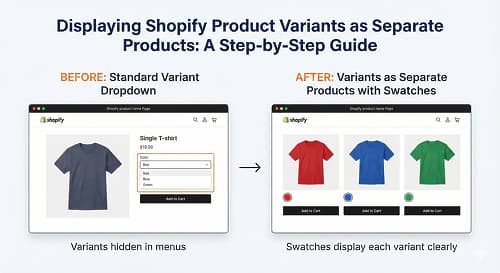
Shopify's product variant system allows merchants to offer different versions of a product, such as varying sizes or colors. However, sometimes merchants want to display these variants as separate products on their storefront. In this article, we'll explore how to achieve this without duplicating products, using Shopify's metafields and custom coding.
Understanding the Problem
By default, Shopify treats product variants as part of a single product. While this works well for many merchants, some may want to showcase each variant as a distinct product. This can be particularly useful for stores with complex product catalogs or those that want to optimize their product pages for search engines.
Using Metafields to Store Variant Information
Shopify's metafields provide a flexible way to store custom data against products, variants, and other resources. In this case, we can use metafields to store information about each variant, allowing us to display them as separate products.
To get started, we'll create a new metafield definition for the Product Variant resource. This will enable us to store custom data against each variant, such as a unique identifier or additional metadata.
Creating a Metafield Definition
To create a metafield definition, follow these steps:
- Log in to your Shopify admin panel and navigate to Settings > Metafields.
- Click 'Add definition' and select 'Product Variant' as the resource type.
- Choose a name and data type for your metafield (e.g., 'Variant ID' with a text data type).
- Save your new metafield definition.
Displaying Variants as Separate Products
With our metafield definition in place, we can now write custom code to display each variant as a separate product. We'll use Liquid, Shopify's templating language, to access our metafield data and render the variant information on the storefront.
Example Liquid Code
{% for product in collections.all-products %}
  {% for variant in product.variants %}
    {% assign variant_metafield = variant.metafields.custom.variant_id %}
    {% if variant_metafield %}
      <div>
        <h2>{{ variant.title }}</h2>
        <p>Price: {{ variant.price | money }}</p>
        <p>Variant ID: {{ variant_metafield }}</p>
      </div>
    {% endif %n  {% endfor %}
{% endfor %}
This code loops through all products and their variants, accessing the custom metafield data we created earlier. It then renders a simple product card for each variant, displaying the title, price, and variant ID.
Customizing the Display
To customize the display of our variant products, we can modify the Liquid code to include additional metadata or styling. For example, we could add a product image or description to each variant card.
Advanced Customization
For more advanced customization, we can use Shopify's APIs to fetch additional data or manipulate the variant information. This might involve using the Shopify GraphQL API to retrieve variant metadata or create custom API endpoints to handle variant-related requests.
Conclusion
Displaying Shopify product variants as separate products can be a powerful way to enhance your storefront's user experience and search engine optimization. By leveraging metafields and custom coding, merchants can create a more granular and flexible product catalog without duplicating products. With this guide, you should now have a solid understanding of how to implement this feature on your own Shopify store.
Shopify implementation notes
When I would review this in a client Shopify store, I would start with the operational surface instead of the headline. Displaying Shopify Product Variants as Separate Products: A Step-by-Step Guide only becomes useful when the reader can map it to a theme file, app setting, Admin API job, checkout rule, or storefront behavior they can actually test.
My review path is simple: connect the advice to one real workflow, make the risk visible, change only what is needed, and keep proof that the change worked.
Store implementation checklist
- Check the exact Shopify surface before changing code.
- Test with products that have missing images, long variants, empty metafields, and unusual prices.
- Confirm the change is visible in server-rendered HTML where SEO/AEO matters.
- Keep a rollback path for app or theme changes.
- Write a handoff note so the merchant team knows what can be edited safely.
Store risks I would test
- The article sounds correct but does not explain what to edit in Shopify.
- The guidance ignores app conflicts, API versions, or messy product data.
- The change helps desktop screenshots but hurts mobile checkout.
- The page makes a claim that is not backed by visible content or schema.
Store QA note template
Implementation check for Displaying Shopify Product Variants as Separate Products: A Step-by-Step Guide:
1. Confirm the Shopify surface involved: theme, Admin API, checkout, app, or storefront.
2. Test with messy catalog data, not only a demo product.
3. Verify permissions, API version, and rollback path.
4. Record the production edge case this change protects.
This block is meant to force a practical check before code, content, or client advice moves forward.
Next Shopify improvement
To make this stronger over time, I would add proof from the workflow itself: a screenshot, log excerpt, metric table, source link, or concrete QA result.
For a shorter post, I would add depth through one tested example rather than filler. One good edge case or validation note is more useful than another generic overview.
- One real example from the workflow.
- One edge case that breaks the simple advice.
- One metric or signal to watch after the change.
- One clear action the reader can take today.
SEO and merchandising tradeoff
I would only show variants as separate product cards when shoppers actually choose by that variant: color, style, size pack, material, or bundle. If every variant gets its own indexable page without unique content, the store can create thin near-duplicates. The safer path is often variant cards in collection UI while keeping canonical product URLs clean.
- Use separate cards when variant choice changes buying intent.
- Keep canonical URLs consistent.
- Avoid duplicate product descriptions for each variant.
- Test collection filters and availability states.
- Track whether variant cards improve product clicks or only add noise.
Want this built for you instead of DIY?
I'm Karan — a Top Rated Plus Shopify Expert ($300K+ earned, 100% Job Success). If you'd rather hand this to someone who's done it hundreds of times, let's talk.
🛠️Shopify Development Tools You Might Like
Tags
📬 Get notified about new tools & tutorials
No spam. Unsubscribe anytime.
Comments (0)
Leave a Comment
No comments yet. Be the first to share your thoughts!