Shopify Theme Update Wiping Customizations: What Happened and How to Recover
Since March 20, 2026, Shopify theme updates are wiping global customizations including logos and settings. Here's what's happening, a recovery workaround, and how to prevent it in future.

If you recently updated your Shopify theme and lost your customizations — logo, colors, settings, section configurations — you're not alone.
Since around March 20, 2026, multiple store owners and developers have reported that updating to a new theme version via the Shopify Theme Store wipes all previous global customizations.
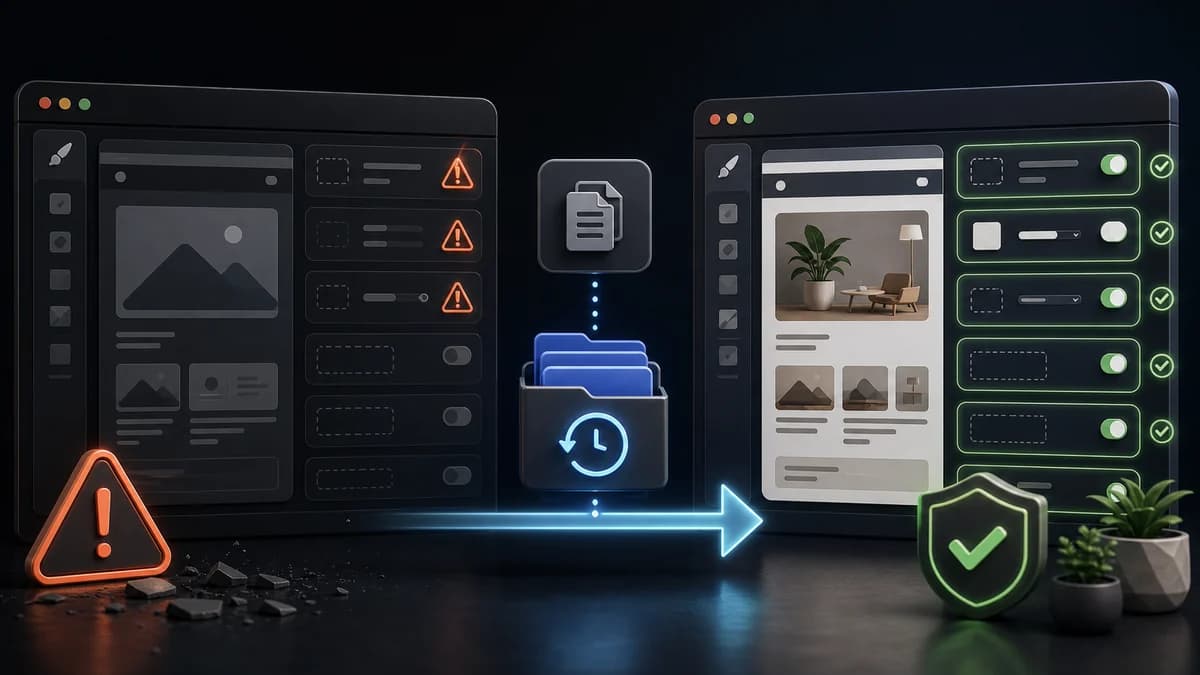
What's Being Lost
Store owners are reporting that after a theme update: Logo files removed or reverted to default, Global color scheme settings reset, Header/footer configurations lost, Custom section content in certain blocks wiped, Font selections reverted to defaults.
Why This Is Happening
Shopify theme updates work by applying changes from the new theme version to your existing customized theme. Normally, your config/settings_data.json (which stores all your editor customizations) should be preserved. The bug appears to be causing this file to be overwritten or reset during the update process.
This is a Shopify-side bug, not something you did wrong.
Immediate Recovery Steps
Step 1: Check your theme backups — Shopify automatically keeps previous versions. Go to: Online Store → Themes → (find your theme) → (...) menu → View older versions. If you can find the pre-update version, you can restore it directly.
Step 2: Check for an automatic backup — When you update a theme, Shopify creates a backup copy named something like [ThemeName] (Backup). Check your theme list — it may still be there with your old settings intact.
Step 3: If no backup — use git — If you track your theme in version control, you can restore your settings file.
git checkout HEAD~1 -- config/settings_data.json
shopify theme push --only config/settings_data.json
Prevention: What to Do Before Every Theme Update
1. Export your settings — Before any update, download your theme from the theme editor (Actions → Download) and keep a local copy.
2. Use version control — Track your theme with Shopify CLI + git: shopify theme pull before updates.
3. Duplicate first — Always duplicate the live theme and test updates on the duplicate, never directly on the live theme.
Current Status (March 27, 2026)
Shopify has acknowledged reports in their community forums. No official fix has been announced yet. Until resolved: Do not update themes via the Theme Store unless you have a verified backup.
How I would apply this in a Shopify build
When I would review this in a client Shopify store, I would start with the operational surface instead of the headline. Shopify Theme Update Wiping Customizations: What Happened and How to Recover only becomes useful when the reader can map it to a theme file, app setting, Admin API job, checkout rule, or storefront behavior they can actually test.
I would treat this as a real production decision: define the expected behavior, name the risk, make the smallest useful change, and verify the result with evidence from the page, command, metric, or support case.
Shopify QA checklist
- Check the exact Shopify surface before changing code.
- Test with products that have missing images, long variants, empty metafields, and unusual prices.
- Confirm the change is visible in server-rendered HTML where SEO/AEO matters.
- Keep a rollback path for app or theme changes.
- Write a handoff note so the merchant team knows what can be edited safely.
Shopify failure modes
- The article sounds correct but does not explain what to edit in Shopify.
- The guidance ignores app conflicts, API versions, or messy product data.
- The change helps desktop screenshots but hurts mobile checkout.
- The page makes a claim that is not backed by visible content or schema.
Shopify review block
Implementation check for Shopify Theme Update Wiping Customizations: What Happened and How to Recover:
1. Confirm the Shopify surface involved: theme, Admin API, checkout, app, or storefront.
2. Test with messy catalog data, not only a demo product.
3. Verify permissions, API version, and rollback path.
4. Record the production edge case this change protects.
I keep this kind of note short so it can be reused during review without becoming another document nobody reads.
What I would improve in the store next
The next upgrade I would make is to add a real artifact: screenshot, command output, before/after table, benchmark, source link, or QA note. Those details give the page more authority and make it more useful to answer engines.
For a shorter post, I would add depth through one tested example rather than filler. One good edge case or validation note is more useful than another generic overview.
- One real example from the workflow.
- One edge case that breaks the simple advice.
- One metric or signal to watch after the change.
- One clear action the reader can take today.
A concrete Shopify example to keep
For Shopify Theme Update Wiping Customizations: What Happened and How to Recover, I would keep one concrete example in the page so the advice does not stay abstract. The example should show the starting state, the decision being made, the check I would run, and the signal that tells me the change worked. That makes the content more useful for readers and more defensible for SEO/AEO because it demonstrates practical experience instead of repeating a general claim.
- Starting state: what the store, app, workflow, or codebase looks like before the change.
- Decision point: what the reader needs to choose or fix.
- Validation: the command, screenshot, metric, support ticket, or QA step that proves the change.
- Risk: the edge case that could still fail in production.
- Follow-up: the next improvement I would make after the first pass is stable.
Bottom line for Shopify teams
The practical takeaway is to apply the checklist to one real case first. If it improves that page, workflow, client conversation, or production bug, then it is worth scaling.
Review path for shopify-theme-update-wiping-customizations-2026:
1. Pick one real example.
2. Apply the checklist.
3. Record before/after evidence.
4. Watch one metric or failure signal.
5. Keep or revert based on the result.Want this built for you instead of DIY?
I'm Karan — a Top Rated Plus Shopify Expert ($300K+ earned, 100% Job Success). If you'd rather hand this to someone who's done it hundreds of times, let's talk.
📬 Get notified about new tools & tutorials
No spam. Unsubscribe anytime.
Comments (0)
Leave a Comment
No comments yet. Be the first to share your thoughts!